Tuition Receipt
Summary
How to obtain a tuition receipt
Instructions
You can view any past or present tuition charges and payments in Self-Service.
1. Go to abtech.edu, select "Online Services" in the upper-right corner, and select "Self-Service."
2. If you are already logged into your student email, you will already be logged in to Self-Service through Single Sign-On (SSO). If you are not logged in to your A-B Tech Microsoft Account, you will be prompted to log in through Microsoft.
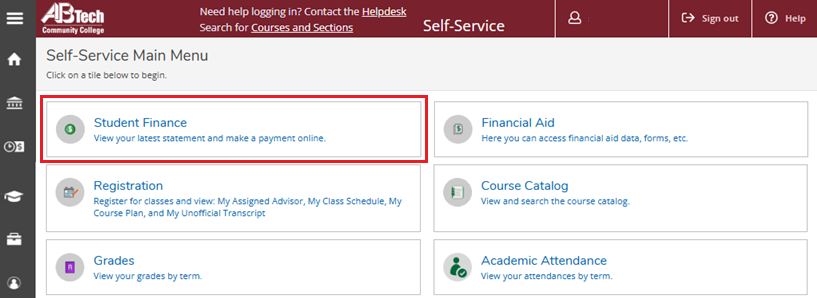
3. Click on the "Student Finance" tile on the Self-Service homepage.
4. Click on the semester you wish to view under the "Total Account Balance" heading.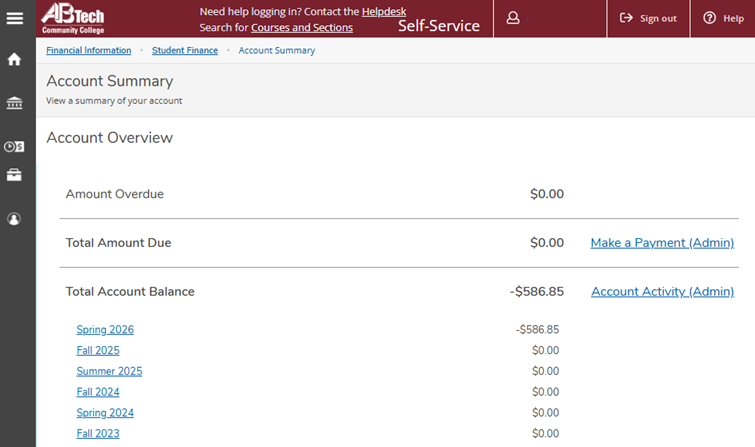
5. On the next page, you will see a "View Statement" link on the right side of the screen. If you click this link, a PDF will generate with a statement of your charges, payments, and any other account activity for the selected semester.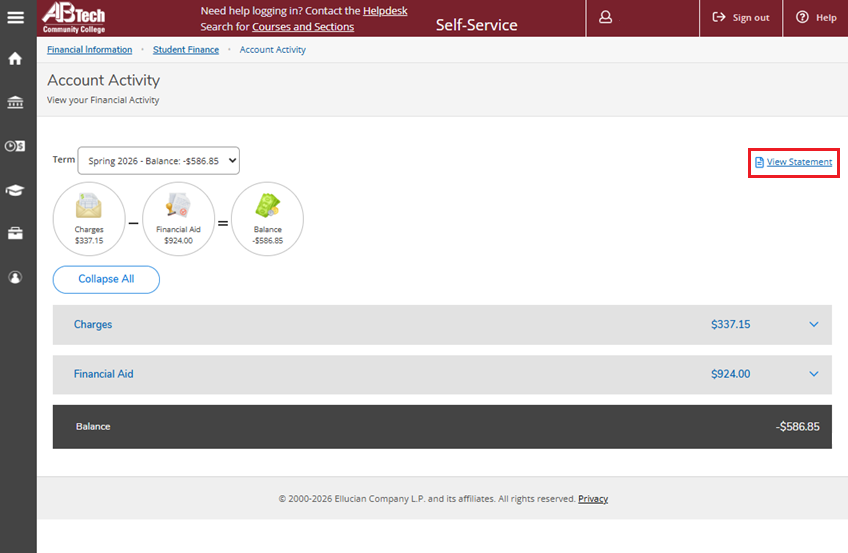
Tuition receipts are also emailed to your student email address after a tuition payment is made. If you need an official tuition receipt for a third-party payment, please contact the Business Office for a Registration Statement.
Receipt for Books
If you bought books with financial aid, you can expand the "Financial Aid" tab in Self-Service to view these charges on your "Account Activity" screen (see screenshot above). Since the 1098-T form does not include book purchases (only tuition), this may be helpful when you file your taxes.
If you paid for books out of pocket, A-B Tech will not have a record of your purchase. You can try searching your credit card or bank statements to see how much you spent on books.