View Your Plan in Self-Service
Summary
Step-by-step instructions for viewing your course Plan online in Self-Service Registration
Important Note: If you are enrolled in an academic program, you must consult with your program advisor before you can register for classes. Advising opened in March 2025 for Summer 2025, Fall 2025, and Spring 2026 classes. You can only register for classes that have been approved by your program advisor.
Instructions
- Go to abtech.edu, select "Online Services" at the top of the page, and click "Self-Service."
- If you are already logged into your student email, you will already be logged in to Self-Service through Single Sign-On (SSO). If you are not logged in to your A-B Tech Microsoft Account, you will be prompted to log in through Microsoft.
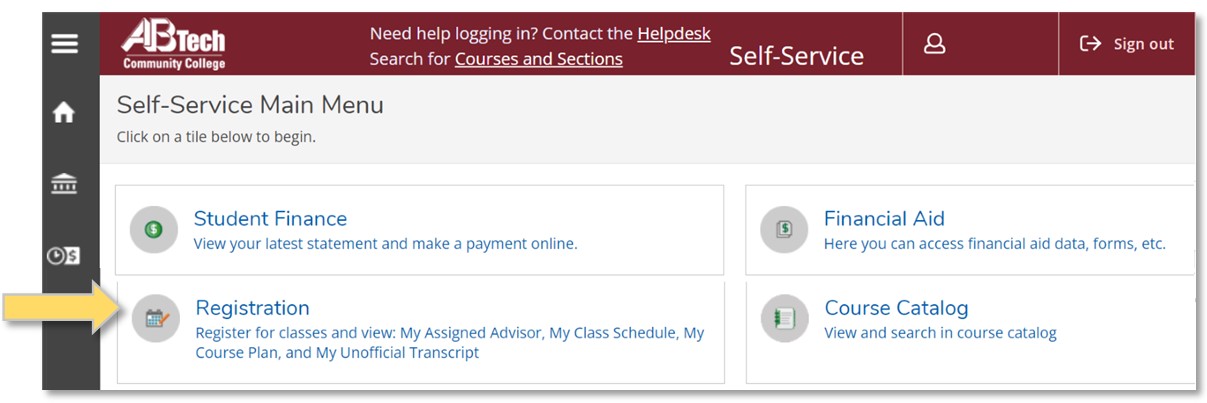
- Click on the "Registration" tile on the Self-Service Main Menu page.
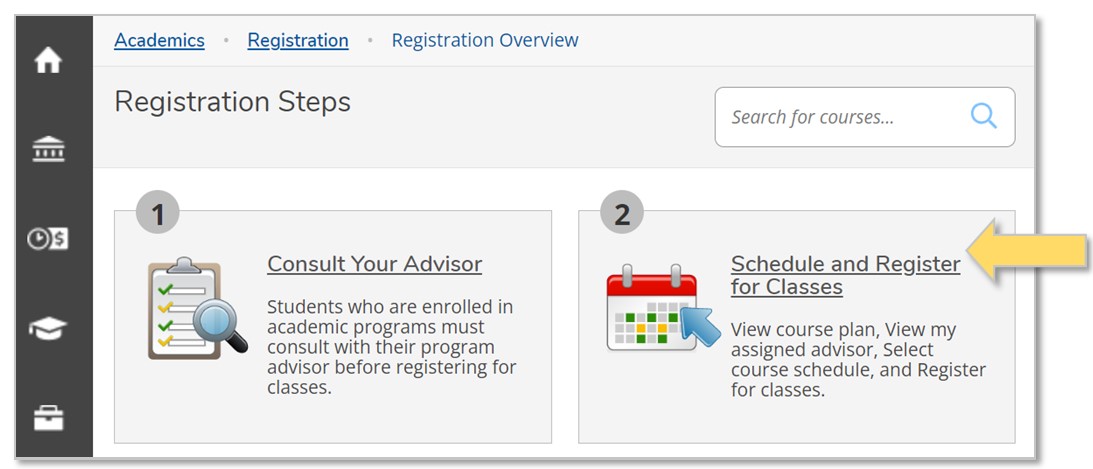
- Select "Schedule and Register for Classes."
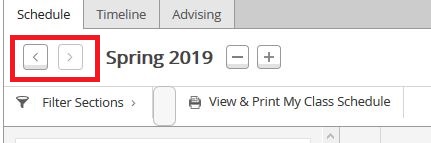
- Use the arrows to select the semester you wish to view in your Plan. If the semester you would like to view isn't listed, click the plus ("+") button to add it.
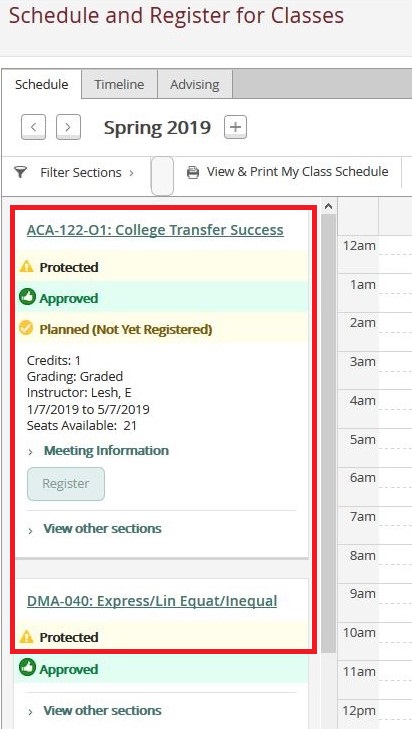
- Your Plan will appear down the left side of your screen. If you are in a program, then you will only be able to register for classes that are both on your Plan and Approved by your program advisor.
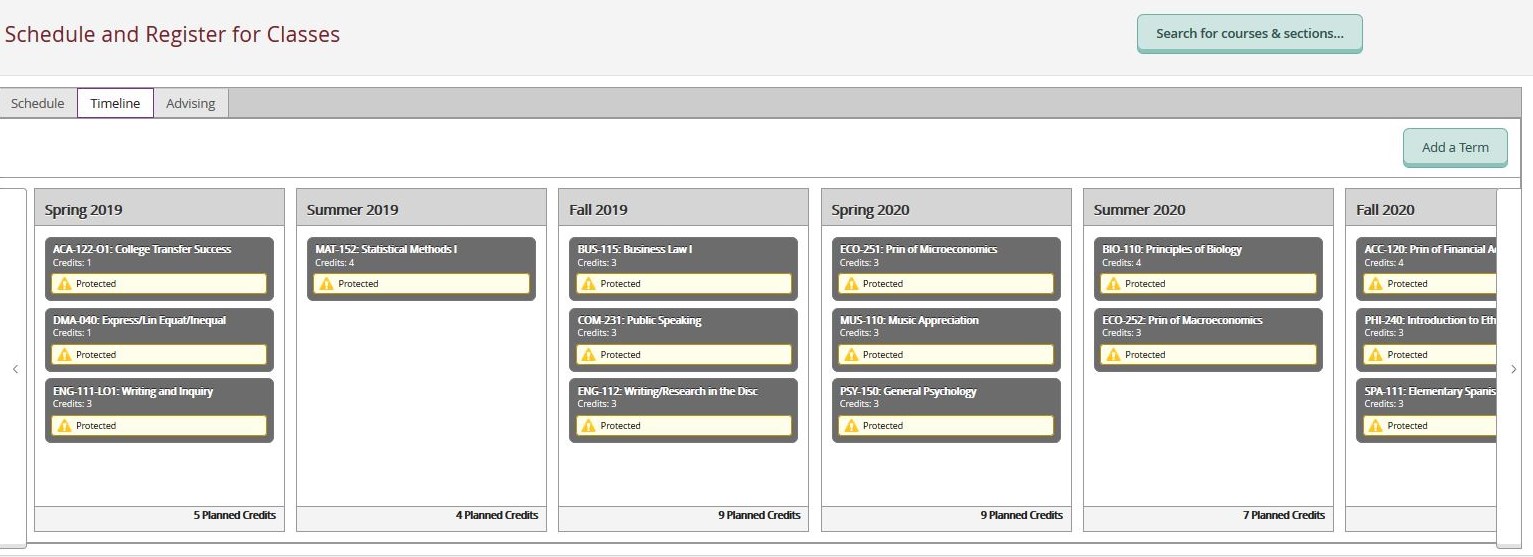
- To view a timeline of all the semesters currently on your Plan, click on the "Timeline" tab. The Timeline view shows all past, present, and future courses on your Plan.
Key Words: educational plan, ed plan, education plan, ed. plan, advising, course plan, class plan